Which CAD workflow should you use for 3D printing?
Use a specialized generator for a familiar template, AI CAD for a new part you can describe, and full CAD when complex relationships or engineering requirements drive the design. The best starting tool is the one that preserves your next likely edit—not necessarily the one that produces the first image fastest.
For a maker, the process rarely begins at a workstation. You notice a cable that needs a holder, measure a missing spacer, or find that a printed adapter is too tight. Mobile CAD can help you capture that requirement beside the object and continue working when you return to a larger screen.
1. A no-CAD generator: when the template already fits
A specialized generator lets you adjust a bounded design through a few inputs. Think storage bins, labels, signs, gears, or a holder with a configurable opening. The tool’s author has already decided which dimensions and relationships to expose.
That approach addresses a real maker need. In a first-person introduction to a directory of print generators, the creator describes tools that accept forms, images, or text and produce STL or 3MF files. It is an example of the workflow—not a benchmark or evidence that every listed tool is reliable.
Start with a generator if the next change stays inside its controls. Before investing time, check whether you can save the configuration, change the critical dimension, and add the feature most likely to be needed later. A downloaded mesh alone may be awkward to revise when your design outgrows the template.
2. AI CAD: when the part is new but describable
Text-to-CAD fills a different gap: you know what the part must do, but do not want to begin with a blank modeling workspace. A useful brief describes dimensions, interfaces, and constraints—not just an object’s appearance.
For example, an illustrative starting brief might be:
Create a cable holder for an 8 mm cable. Use a flat mounting base with two screw holes. Ask me for the screw size, mounting-hole spacing, wall thickness, and fit clearance before finalizing the geometry.
This is a prompt example, not a tested design or a claim that the screenshot was generated from it. The missing dimensions matter: an AI system should not silently turn unknown fit requirements into engineering decisions.
The useful output is a model you can inspect and revise. Check the body count, critical dimensions, wall continuity, screw access, and clearance around mating parts. Change one uncertain interface at a time, and retain the editable project when exporting a print file.
Where Nora3D fits
Nora3D’s text-to-CAD workflow is built around editable B-Rep geometry: describe a part, inspect it, and continue editing instead of treating the first generated shape as final. The practical advantage is keeping a CAD model available for the next revision.
Its mobile workflow brings that process to smaller screens. Use a phone to enter measured dimensions, review the overall shape, and record a specific change beside the object or printer. Continue in the web workspace when detailed inspection is easier on a larger display. Generation and synchronization require connectivity; mobile access is not a promise of offline AI modeling.
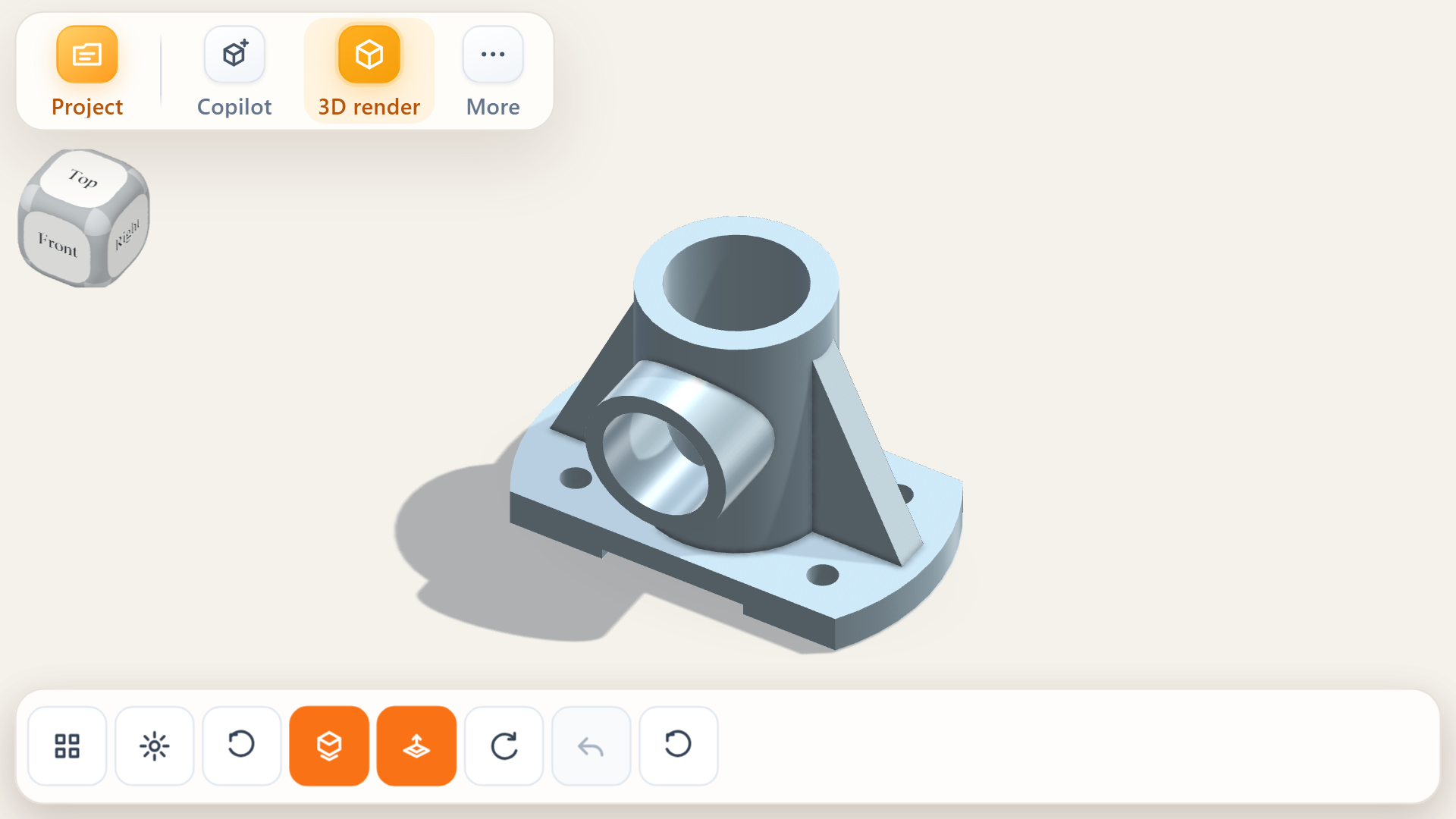
The screenshot above shows the mobile web layout and an existing template. It does not establish dimensional accuracy, successful printing, or native-app store availability. Check the current app and pricing for available tools, exports, and usage limits.
3. Full CAD: when relationships and verification dominate
Move to a full CAD workflow when a part depends on many interacting constraints, reusable features, assemblies, drawings, or controlled revisions. Choose the actual system and extensions around your needs; CAD tools do not all include the same simulation, CAM, or data-management capabilities.
Mobile access is not unique to AI CAD. Onshape’s documentation describes browser access and iOS/Android apps. Shapr3D offers an iPad modeling experience. Compare the operations you need, device support, and current plan restrictions—not just whether a product has a mobile interface.
A phone can be a useful place to begin or review a design without being the most comfortable place for a long tolerance check. Safety-critical parts require appropriate engineering review regardless of which tool created the first shape.
A practical mobile-to-print workflow
- Measure beside the object. Record units, overall size, mounting positions, and mating surfaces. Keep uncertain values separate from measured ones.
- Choose the smallest useful starting point. Configure a template when it fits; use text-to-CAD when the geometry needs a more open-ended description.
- Review the first model. Rotate and inspect the part. Do not mistake a convincing render for proof of fit or strength.
- Keep the next edit possible. Save the source project. After a test fit, record a specific revision such as “increase the cable opening,” including the measured amount.
- Inspect the handoff. Check dimensions and units in the receiving CAD tool or slicer, review orientation and supports, and print a small fit sample where practical.
For more on iteration, see why text-to-CAD should let you keep working on the same model and the Nora3D 3D-printing workflow.
FAQ
Can I make a custom 3D print without learning full CAD?
Yes, if a generator can express your design or a text-to-CAD tool can produce a suitable starting model. You still need to verify dimensions and inspect the sliced result. Reducing modeling effort does not remove validation.
Can I use Nora3D on a phone?
Nora3D supports a mobile workflow for capturing intent, reviewing geometry, and continuing a CAD project across devices. The image in this article shows its mobile web interface. Use the official website for current access options; this article does not announce a Google Play or App Store release.
Should I keep STL or STEP?
Keep the native project first. STL carries a triangle mesh for slicing; STEP is useful for exchanging CAD geometry. A STEP handoff does not generally reproduce the original application’s feature tree, sketches, and constraints, so test what remains editable in your receiving tool.
Is AI CAD a replacement for a complete engineering workflow?
No. It can help turn intent into an editable starting point. Complex assemblies, simulation, manufacturing processes, and safety decisions still need the appropriate tools and review.
Start with the next change in mind
If the part fits a template, use the template. If you can describe a new part and want to keep editing it, try AI CAD. If its relationships and risks need deeper control, use full CAD. Mobile access makes the starting point more convenient; preserving the next edit makes the workflow useful.
Try Nora3D with one measured, non-critical part and review the result before printing.
Editorial note: adapted from our October 1 research draft. Public community posts are examples, not representative market evidence. Product references were checked on October 5, 2026; no comparative speed, accuracy, or print-success benchmark is claimed.