A 3D scan captures a part's shape. But what happens when you need to widen a slot, change a mounting hole, or repair a broken section before printing?
Nora3D lets you import a scanned mesh and ask the Nora AI assistant to help reconstruct it as an editable CAD model. You can then refine the geometry and export it for printing or further CAD work. The scan becomes a starting point for modification, with critical dimensions checked against the real object.
Why Rebuild a Mesh as CAD?
A mesh describes a surface with many small polygons. Editing a functional feature, such as a bore or a wall, can require more work than changing the equivalent CAD geometry. Simply converting every triangle into a CAD face may also leave a cumbersome model; reconstruction aims to recover useful shapes you can work with.
One maker's replacement air-purifier fan project illustrates the problem. In a September 21, 2026 post, they described combining a scanned blade with a hub modeled in Fusion. A follow-up noted that mesh-to-solid conversion and rendering consumed part of the modeling time.
That is a practical opening for AI-assisted reconstruction: use existing geometry to help rebuild a part, then adjust the features that determine how it fits and works.
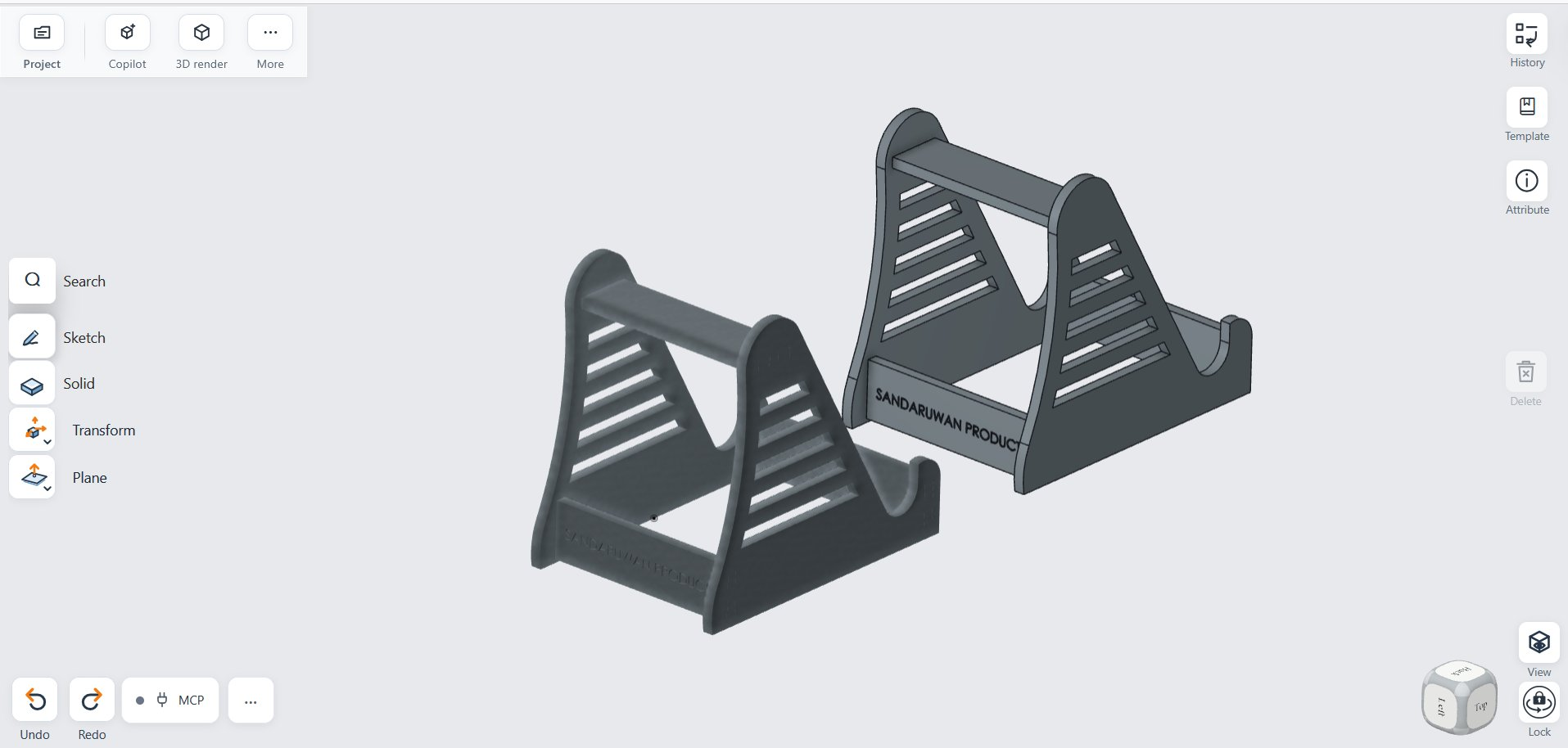
A reconstruction example in Nora3D, supplied by the product team. The slotted stand illustrates the workflow; it is separate from the Reddit fan project.
From Imported Scan to Printable Part
1. Import the mesh and check scale
Bring your scanned model into Nora3D. Compare a known dimension with the physical part, and identify the features that matter: overall size, mounting holes, slots, contact surfaces, and wall thickness. Measure critical fits directly with calipers.
2. Ask Nora AI to help reconstruct the CAD
Describe the structure you want to preserve and the dimensions you can verify. For a stand like the example above, a useful starting prompt is:
Help rebuild this imported mesh as an editable CAD model. Preserve the two side panels, connecting bars, front retaining lips, and repeated slots. Use my measured overall width of [X] mm as a reference, and flag unclear geometry for review.
Replace the placeholder with a measurement. Inspect the reconstruction against the mesh; damaged or incomplete scans may need additional guidance.
3. Modify the features you need
Once reconstructed, revise the CAD to suit the job. Widen the stand for a thicker device, adjust a slot, or change a mounting hole. Check that a local edit preserves the surrounding dimensions and intended fit.
4. Export and test
Use STL for your slicer or STEP for downstream CAD. Inspect the sliced layers, then print a small section containing the critical fit before committing to the complete part. A recent maker discussion on tolerances reinforces the value of these small interface tests.
For rotating parts such as fan impellers, reconstructed geometry still needs separate engineering checks for balance, strength, and operating conditions. A successful CAD reconstruction does not establish safe operation.
Keep the Project Moving on Mobile
Nora3D supports iOS, Android, and web, so you can continue the project beside the object or printer. Check a measurement, review the model, and communicate a revision while the fit problem is in front of you. Move to a tablet or browser when a larger view helps.
This is particularly useful after a test print: record which surface binds and by how much, then use that observation to guide the next CAD edit.
FAQ
Can Nora3D turn a scanned mesh into CAD?
Yes. Import the scanned mesh and use the Nora AI assistant to help reconstruct a CAD model. Review the result and verify critical dimensions before manufacturing.
Does reconstruction recover the original CAD history?
Rebuilding editable geometry does not necessarily recover the original sketches, constraints, or feature history. Judge the result by the geometry and edits your project requires.
Do I need to scan the part again after changing a dimension?
Usually, you can revise the reconstructed CAD directly. Additional measurements or scans may help if the original input missed an important feature.
Ready to make an existing part easier to modify? Open Nora3D and start with your scanned model.